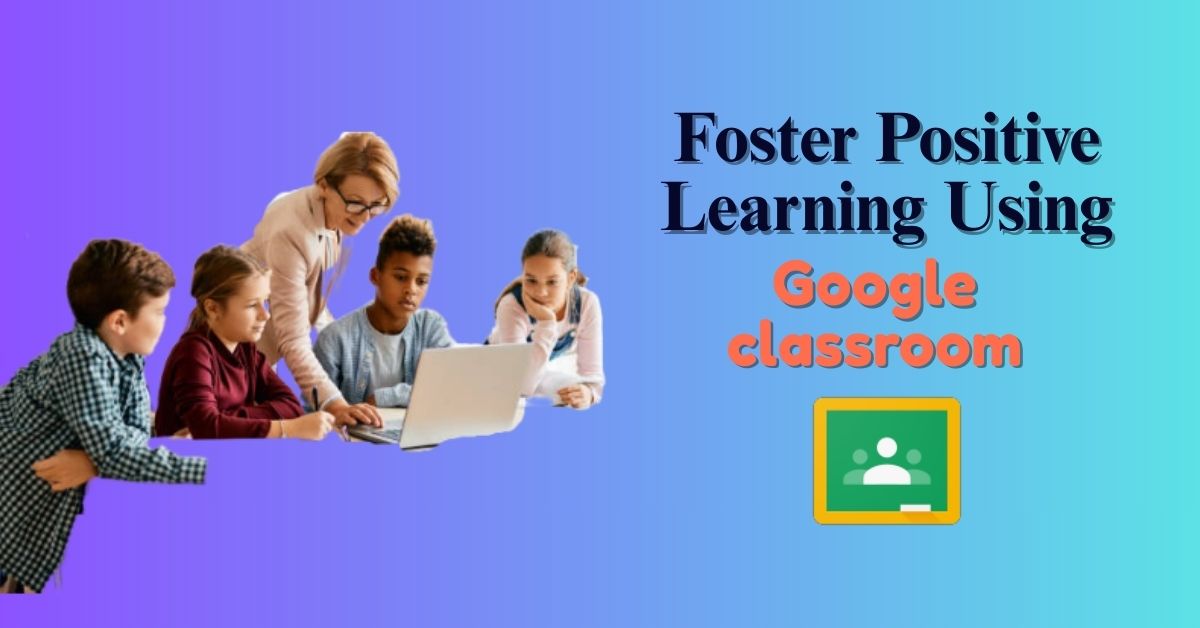
A positive learning environment is one where students feel supported, engaged, and motivated. Research shows that such classrooms are characterized by clear expectations, personalized support, and encouragement of student effort. In any setting – in-person, blended, or fully online – teachers can cultivate positivity by using tools that promote collaboration, timely feedback, and inclusivity. Google Classroom, a popular learning management system (LMS), provides many built-in features to help achieve these goals. It offers a suite of tools for teachers to tailor lessons, engage students, monitor progress, and provide support. By leveraging these tools thoughtfully, educators can create a supportive, engaging space where all learners thrive.
Why Google Classroom Supports a Positive Environment
Google Classroom is a free, user-friendly platform that integrates seamlessly with Google Workspace apps (Docs, Slides, Meet, etc.). With millions of teacher and student users worldwide, it has become a staple for work and collaboration across grade levels and subjects. Its design encourages organization and ease of access: for example, teachers can post announcements on the Stream and organize lessons into modules on the Classwork page. These features reduce confusion and give students clear routines. It also works on any device, letting students join lessons from home or school, which is critical for maintaining learning continuity and a sense of community in blended settings.
Importantly, it’s flexibility helps teachers meet each student’s needs. A teacher reports that “Google Classroom really opened the door to personalized learning… We got right on board with using it to modify lessons for individual students”. In other words, Classroom can help bring a student-centered approach into daily teaching, which is known to foster motivation and confidence. By assigning different resources to different students, tracking progress with analytics, and enabling collaboration, Classroom supports the kinds of continuous feedback and student-centered instruction that experts say create effective, welcoming classrooms.
Key Features and Strategies
1. Personalized and Differentiated Instruction
Every class is diverse. It makes it easy to personalize learning for individual students or groups. Under the Classwork tab, teachers can create an assignment and then select specific students or groups to receive it. This means faster learners can get advanced tasks while others get more review, all within the same class. In addition, teachers can post a variety of content types – articles, videos, or interactive activities – so students can engage with material in the way they learn best. In practice, a teacher might upload a reading for some students and a video for others on the same topic. In one story, a teacher used Classroom for a blended model: students rotated through stations including an asynchronous tech station with self-paced reading and grammar practice. This approach helps each student work at their own pace and strengthens their confidence, which research identifies as a hallmark of positive learning environments.
2. Clear Organization and Expectations
A well-organized class reduces anxiety. In Classroom, teachers should structure the Classwork page into units or topics with clear instructions. For example, a teacher might create a “Module” with a list of required activities for the week. It helps to walk students through the layout so they know where to find each assignment. On the Stream, teachers can post announcements and reminders in a consistent way – for example, daily check-in questions or links to frequently used resources. Establishing these routines means students know what to expect and can focus on learning instead of logistics. As Edutopia experts note, effective classrooms have “every minute of every day… smooth processes… through practice, timing, and repetition, every student knows what to do and when”. Classroom’s layout and announcement tools help maintain that consistency even online.
3. Engaging, Varied Content
Keeping lessons lively and relevant is crucial. Teachers can embed multimedia and interactive elements in Classroom easily. It allows embedding videos and adding questions to them: for example, you can post a YouTube video with interactive quiz questions that pause the video and prompt students to answer. This encourages active learning as students must think through the material. Many third-party educational apps integrate with Classroom: Edpuzzle (interactive video quizzes), Newsela (reading with annotations), Flipgrid (video responses), and Padlet (collaborative boards) all let students work creatively without signing up for new accounts. One teacher recommends including at least one collaborative app per unit; for example, students might discuss ideas on Flipgrid or post project links to the Stream to share with peers.
Gamification – adding game-like elements – is another powerful strategy. Research finds that gamified activities “increase attention span, reduce student stress, and strengthen motivation”. Classroom can support this by organizing lessons as quests or challenges. For instance, a teacher created a virtual “learning adventure” in Google Slides complete with levels, a leaderboard, and badges. Students progressed through immersive tasks (like exploring the Pyramids on Google Street View) and earned points for completing challenges. Within Classroom, that teacher used the Stream to facilitate discussions about the quest. Such creative use of Google tools makes learning more fun and fosters a positive, game-like atmosphere.
4. Collaboration and Community
Students learn a lot by interacting. Google Classroom’s integration with G Suite makes collaborative work seamless. Students can co-edit a Google Doc or Slide in real time on group projects. Teachers can create group assignments where each team has its own shared document to fill in. Outside of assignments, the Stream lets students ask questions and comment on each other’s posts. For example, a student stuck on math homework can post a question; classmates can reply with hints or encouragement. One educator notes that allowing student posts on the Stream builds community: “if students create something… they can post [it] to the Stream and their classmates can review and comment on it”. This peer feedback and sharing of ideas enhances understanding and builds a supportive classroom culture.
Breakout group work can also be done via Google Meet (built into Classroom) or by linking to other platforms. A teacher might say, “Break into small groups and use this Google Doc to brainstorm,” and students work together online as easily as they would in class. These collaborative routines give students social interaction and a chance to learn from each other, which research identifies as essential for a positive learning environment.
5. Positive Feedback and Recognition
Timely, specific feedback is crucial to a positive atmosphere. Google Classroom includes tools to make this easy. Teachers can attach a rubric to any assignment so students see clear grading criteria before they turn in work. When grading, teachers click on the rubric points to give scores and comments. This transparency aligns with best practices: experts emphasize providing “specific, actionable feedback” so students know what they did well and how to improve. In Classroom you can even reuse or import rubrics, streamlining the process. In the help articles, Google notes: “When creating an assignment, you can make, reuse or import a rubric so students can understand expectations and their grades”.
Beyond rubrics, simple comments go a long way. Teachers should acknowledge student effort and growth. As one guide advises, “Provide personalized messages that point out positive aspects of the student’s work”, and encourage students to reflect on improvements. It lets teachers leave comments on drafts and returned work, so students get immediate encouragement. Marking assignments as “excused” or allowing resubmissions (by unchecking “Close submissions after due date”) provides flexibility that shows understanding when students need extra time. These gestures convey trust and support.
Finally, involving families can reinforce positivity. It allows teachers to invite guardians (parents) to receive email summaries of their child’s progress. These summaries list missing work, upcoming assignments, and recent class announcements. When parents see that teachers are engaging in constructive ways and tracking progress, it builds a community of support around the student. Keeping parents informed with weekly emails, for instance, has been shown to improve student motivation and accountability.
Accessibility and Inclusion
A truly positive classroom ensures every student can participate. It is part of Google’s ecosystem, which includes many built-in accessibility tools. For example, voice typing (dictation) is available in Google Docs and Slides. Students who have difficulty typing or who express themselves better by speaking can use this feature to write text. In the screenshot below, a teacher is using voice dictation in a Google Slides lesson on cellular biology.
Google Classroom and related Google Workspace tools offer built-in accessibility features that help students learn in the way that suits them best.
Other accessibility features include screen readers (for blind students), high-contrast modes, and automatic closed captions during video lessons. When holding live classes via Google Meet (integrated into Classroom), teachers can turn on real-time captions so that hearing-impaired students see a transcript of the discussion. Google confirms that captions “display the speaker’s words in real time” in Meet and other apps. The image below shows a Meet session with live captions at the bottom (“Welcome to homeroom, let’s get started.”).
Google Meet (used within Classroom) includes live captioning so that deaf or hard-of-hearing students can follow along.
Practical Strategies and Tips
Below are practical strategies teachers (and students) can use in Google Classroom to foster positivity:
Organize clearly: Set up the Classwork page with topics or modules and sequential tasks. Label each assignment clearly with instructions and due dates. Review the structure with students so they know how to navigate it.
Use the Stream for communication: Post regular announcements and reminders on the Stream. Encourage students to ask questions or share ideas there. This builds community and lets students help each other.
Mix activities: Include multimedia (videos, images, interactive slides) and varied tasks. Use features like interactive video questions or integrate apps such as Edpuzzle or Quizlet to engage different learning styles. Consider adding game-like elements (badges, levels, challenges) to motivate learners.
Encourage collaboration: Create group assignments or peer-review exercises. Let students work together on a shared Google Doc or Slide. Have them post their work in the Stream for classmates to review. Small-group discussions (via breakout rooms or subgroups in Meet) can also reinforce social learning.
Provide regular, positive feedback: Use Classroom’s commenting and grading tools to give praise and guidance. Attach rubrics so expectations are clear. Highlight what students did well in each submission, and use private comments to suggest improvements. Quick, personal responses (even emoji thumbs-up!) show that you care.
Be flexible and supportive: Use Classroom settings to be understanding. Allow late submissions when appropriate (unchecking “close submissions”) and mark work excused if needed. Celebrate student progress publicly (e.g. mention it in class announcements or reply with praise on a post) to build confidence. Use positive language throughout, focusing on successes rather than errors.
Foster relevance and choice: Whenever possible, connect assignments to students’ interests or real-world examples. Offer choices (e.g. pick one of several project topics) to give students ownership of their learning.
Track and intervene: Use Google Classroom’s Analytics and Reports (Classwork tab > View analytics) to monitor student progress. If a student is falling behind, reach out proactively. Google’s analytics can flag those who have missed assignments or show who has trouble with a topic, helping the teacher to provide extra support early.
Involve guardians: Activate Guardian summaries so parents receive weekly email updates about upcoming and missing work. This not only keeps families in the loop but shows students that the adults around them are united in supporting their success.
Implementing these strategies turns it from just a digital filing cabinet into a dynamic learning community. When students see that their contributions are valued, get timely support, and can collaborate safely, the learning space becomes positive by design.
Conclusion
Fostering a positive learning environment is an ongoing process that hinges on engagement, support, and inclusivity. Google Classroom provides the tools to make this process practical and scalable. By carefully organizing content, personalizing instruction, encouraging collaboration, and using features like instant feedback and accessibility options, teachers can create a warm, motivating atmosphere even online. Every student—from classroom veteran to the one who struggles with tech—can benefit when the platform empowers them. As one educator put it, Classroom “help[s] students understand the lesson better” by allowing adjustments for individual needs. When students feel capable and connected in their learning, they become more confident and excited to participate. In this way, it helps education communities of all kinds build positive, lifelong learning experiences for every member.
Read more about: RemNote an All-in-One Note-Taking and Flashcard App






Be First to Comment